ON PREM 26ai DATABASE · SILENT INSTALLATION
Silent Installation of Oracle AI Database 26ai on Oracle Linux 8.10
A step-by-step guide to silently installing Oracle AI Database 26ai on Oracle Linux 8.10, creating a CDB and PDB, and configuring automatic startup.
Share on LinkedIn ↗The host used for this installation is a KVM virtual machine running Oracle Linux 8.10, with 2 vCPUs, 8 GiB RAM, and a 100 GiB disk.
1. Lab and Linux installation
| Guest hostname | ol8-26ai-lab |
|---|---|
| Virtualization | KVM, x86-64 |
| Guest resources | 2 vCPUs, 8 GiB RAM, 100 GiB disk |
| Operating system | Oracle Linux Server 8.10, Server with GUI |
| Kernel verified | 5.15.0-206.153.7.1.el8uek.x86_64 |
| Software release verified | Oracle AI Database 26ai, internal version 23.26.1.0.0 |
| CDB / SID | ORCL |
| PDB | ORCLPDB1 |
I installed Linux through the VM console, enabled its wired network, set the hostname and time zone, and created the oracle Linux user. The database installation itself uses silent mode; a graphical desktop is not required for these database commands.
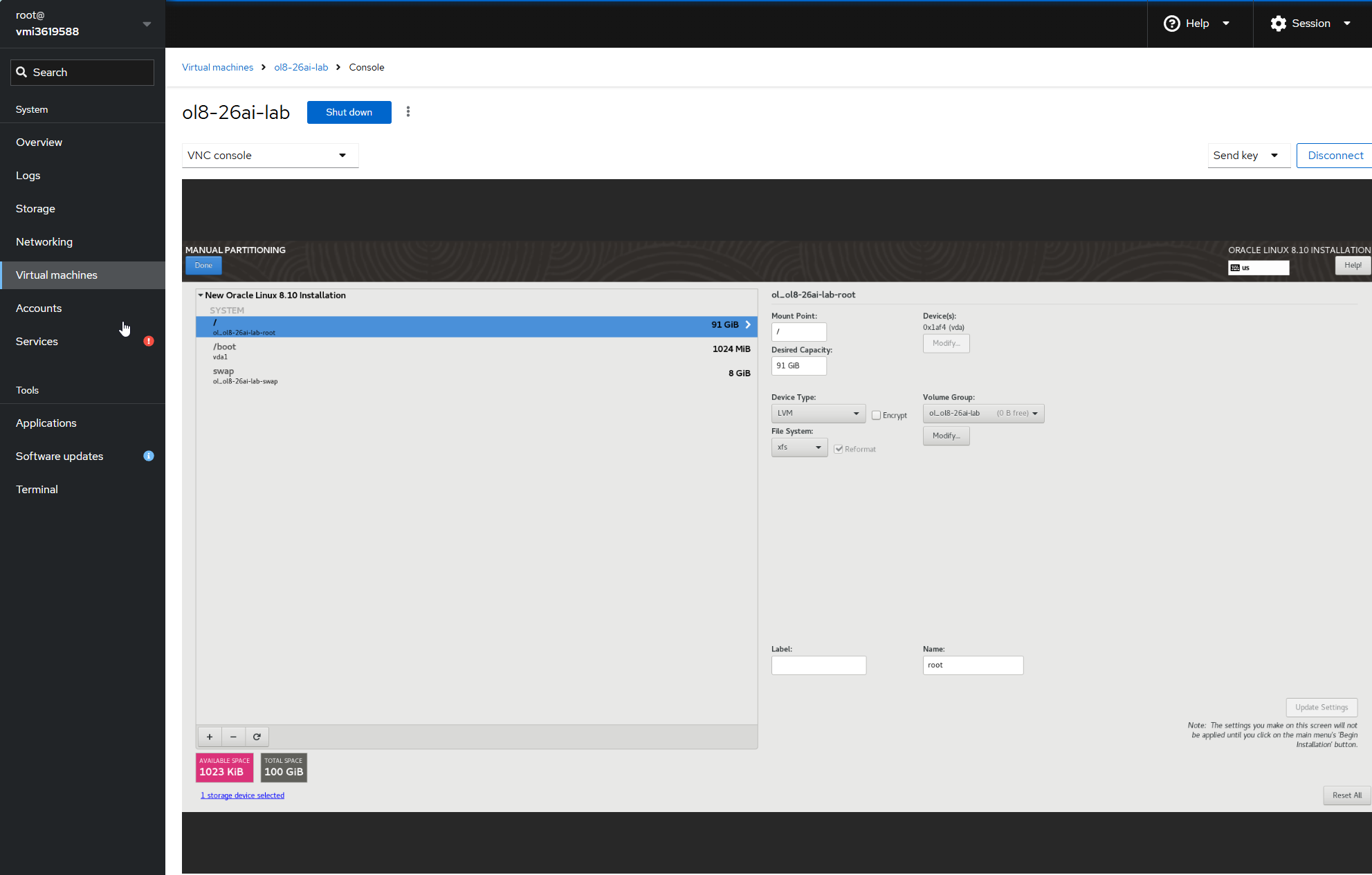
| Partition | Size | Layout |
|---|---|---|
/boot | 1024 MiB | Standard partition, XFS |
swap | 8192 MiB | LVM swap |
/ | Remaining space, about 91 GiB | LVM, XFS |
Enter /boot with its leading slash. Select swap without a slash for swap space. Here, 1024 MiB equals 1 GiB; decimal GB is a different unit. This compact disk layout worked for this lab, but it does not establish adequate capacity for production, growth, backups, or future patching.
After Linux booted, I checked the system:
cat /etc/oracle-release
uname -r
hostnamectl
free -h
swapon --show
df -h /
ip -br address
The results showed approximately 7.5 GiB usable RAM, 8 GiB active swap, and a 91 GiB root filesystem. For copying commands from Windows, I used PuTTY over SSH rather than the browser VNC console. SFTP transferred the installation ZIP into the guest; no FTP server was needed.
2. Prepare the Oracle user and directories
Run the following as root inside the new Oracle Linux guest:
dnf install -y oracle-ai-database-preinstall-26ai
rpm -q oracle-ai-database-preinstall-26ai
id oracle
getent group oinstall dba oper backupdba dgdba kmdba racdba
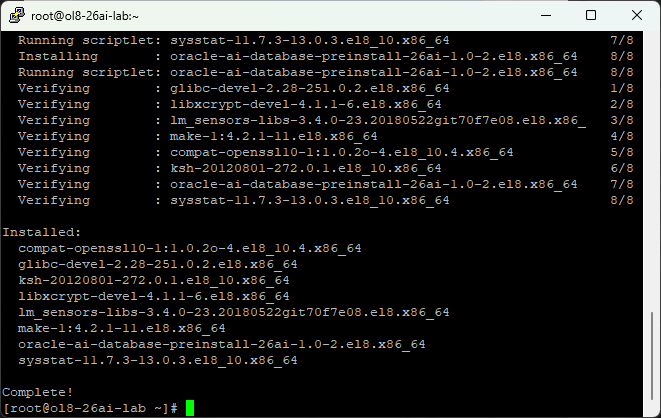
The installed package was oracle-ai-database-preinstall-26ai-1.0-2.el8.x86_64. It prepares operating-system prerequisites; it does not install the database software or create a database.
Because I had already created oracle in the Linux installer, its primary group initially remained oracle. The required groups existed, so I adjusted this existing account:
usermod -g oinstall -aG dba,oper,backupdba,dgdba,kmdba,racdba oracle
id oracle
In this guest, the primary group became oinstall and the supplementary groups included the database administrative groups. Group IDs are local details; do not assume your IDs will match mine.
Start a fresh Oracle login to check effective limits:
su - oracle
ulimit -Sn
ulimit -Hn
ulimit -Su
ulimit -Hu
My observed values, in order, were 1024, 65536, 16384, and 16384. These checks show the limits applied to that login session.
Return to root and create the directories:
exit
mkdir -p /u01/app/oracle/product/26ai/dbhome_1
mkdir -p /u01/app/oraInventory /u01/software
chown -R oracle:oinstall /u01
chmod -R 775 /u01
ls -ld /u01/app/oracle/product/26ai/dbhome_1 /u01/app/oraInventory /u01/software
These recursive ownership and permission commands were used on a newly created, dedicated /u01 tree in this guest. Do not apply them blindly to a shared Oracle tree containing other installations.
3. Verify and extract the software
I downloaded LINUX.X64_2326100_db_home.zip from the official Oracle Linux download page and transferred it to /u01/software. The archive was 2,406,058,543 bytes. Its SHA-256 matched the published download checksum:
sha256sum /u01/software/LINUX.X64_2326100_db_home.zipExpected SHA-256:
2a5d2583df076209e624dff750829f9a562473c27c8f926d546cf9ad2a1a2efdRecheck the checksum on the download page for the exact archive you obtain; a different release will have a different checksum. Then extract as oracle directly into the Oracle home:
su - oracle
cd /u01/app/oracle/product/26ai/dbhome_1
unzip -q /u01/software/LINUX.X64_2326100_db_home.zip
ls -l runInstaller
du -sh .
The quiet extraction returned to the shell without errors. runInstaller was present and the extracted home occupied approximately 5.2 GB as displayed by du.
4. Where did the response file come from?
The template was included inside the database ZIP. Extracting the ZIP placed it at:
/u01/app/oracle/product/26ai/dbhome_1/install/response/db_install.rspA response file supplies the choices that would otherwise be entered through the installer screens. I preserved Oracle's original template and customized a separate copy at /u01/software/db_install_26ai.rsp. That copy, not the untouched template, is the file passed to runInstaller.
First inspect the supplied template. This build uses short keys such as installOption, installEdition, and OSDBA. Do not assume that older examples using deprecated long property names match this media.
grep -vE '^[[:space:]]*(#|$)' install/response/db_install.rsp
cp install/response/db_install.rsp /u01/software/db_install_26ai.rsp
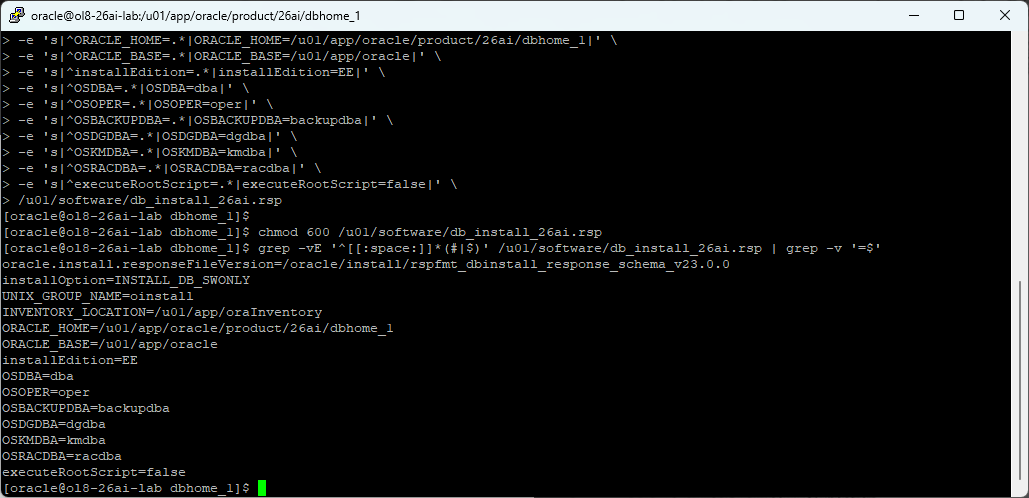
As oracle, set the paths, edition, software-only option, and groups in the copied file:
sed -i \
-e 's|^installOption=.*|installOption=INSTALL_DB_SWONLY|' \
-e 's|^UNIX_GROUP_NAME=.*|UNIX_GROUP_NAME=oinstall|' \
-e 's|^INVENTORY_LOCATION=.*|INVENTORY_LOCATION=/u01/app/oraInventory|' \
-e 's|^ORACLE_HOME=.*|ORACLE_HOME=/u01/app/oracle/product/26ai/dbhome_1|' \
-e 's|^ORACLE_BASE=.*|ORACLE_BASE=/u01/app/oracle|' \
-e 's|^installEdition=.*|installEdition=EE|' \
-e 's|^OSDBA=.*|OSDBA=dba|' \
-e 's|^OSOPER=.*|OSOPER=oper|' \
-e 's|^OSBACKUPDBA=.*|OSBACKUPDBA=backupdba|' \
-e 's|^OSDGDBA=.*|OSDGDBA=dgdba|' \
-e 's|^OSKMDBA=.*|OSKMDBA=kmdba|' \
-e 's|^OSRACDBA=.*|OSRACDBA=racdba|' \
-e 's|^executeRootScript=.*|executeRootScript=false|' \
/u01/software/db_install_26ai.rsp

chmod 600 /u01/software/db_install_26ai.rsp
grep -vE '^[[:space:]]*(#|$)' /u01/software/db_install_26ai.rsp | grep -v '=$'
I kept the template's generated oracle.install.responseFileVersion value unchanged, including its v23.0.0 schema suffix. That is not a request to install a different database version. INSTALL_DB_SWONLY installs software only; DBCA creates the database later. executeRootScript=false means I will run the privileged scripts manually.
5. Install the software and run root scripts
From the Oracle home, as oracle:
./runInstaller -silent -waitforcompletion \
-responseFile /u01/software/db_install_26ai.rsp
The installer created a timestamped response file for the session and reported its log location. That generated session file is separate from both the original ZIP template and my customized input file. I did not use -ignorePrereqFailure.
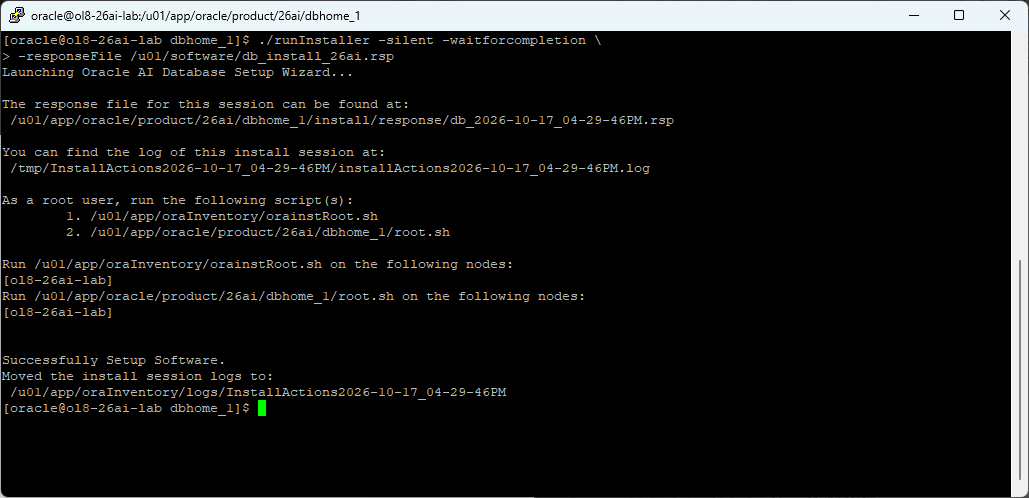
Switch to root and run the requested scripts in order:
su -
/u01/app/oraInventory/orainstRoot.sh
/u01/app/oracle/product/26ai/dbhome_1/root.sh
Review the log path printed by root.sh; in this build its detailed output was written there. Run each script once unless troubleshooting establishes a reason to repeat it. At this stage the software is installed, but there is still no user-created database.
6. Create ORCL and ORCLPDB1 with DBCA
Switch to oracle, set the session environment, and inspect the installed tools:
su - oracle
export ORACLE_BASE=/u01/app/oracle
export ORACLE_HOME=$ORACLE_BASE/product/26ai/dbhome_1
export PATH=$ORACLE_HOME/bin:$PATH
sqlplus -V
ls "$ORACLE_HOME/assistants/dbca/templates/"*.dbc
dbca -silent -createDatabase -help
SQL*Plus reported 23.26.1.0.0. The media supplied General_Purpose.dbc and Data_Warehouse.dbc. I selected General Purpose. The help on this installed build did not list -createAsContainerDatabase, so the tested command omitted that option.
The CDB is the container database, ORCL. Its application PDB is ORCLPDB1. The command creates one PDB and a listener on port 1521, uses filesystem storage, and allocates 3072 MB through the AUTO_SGA memory option:
dbca -silent -createDatabase \
-templateName General_Purpose.dbc \
-gdbName ORCL \
-sid ORCL \
-numberOfPDBs 1 \
-pdbName ORCLPDB1 \
-databaseConfigType SINGLE \
-databaseType MULTIPURPOSE \
-storageType FS \
-datafileDestination /u01/app/oracle/oradata \
-characterSet AL32UTF8 \
-memoryMgmtType AUTO_SGA \
-totalMemory 3072 \
-createListener LISTENER:1521 \
-emConfiguration NONE
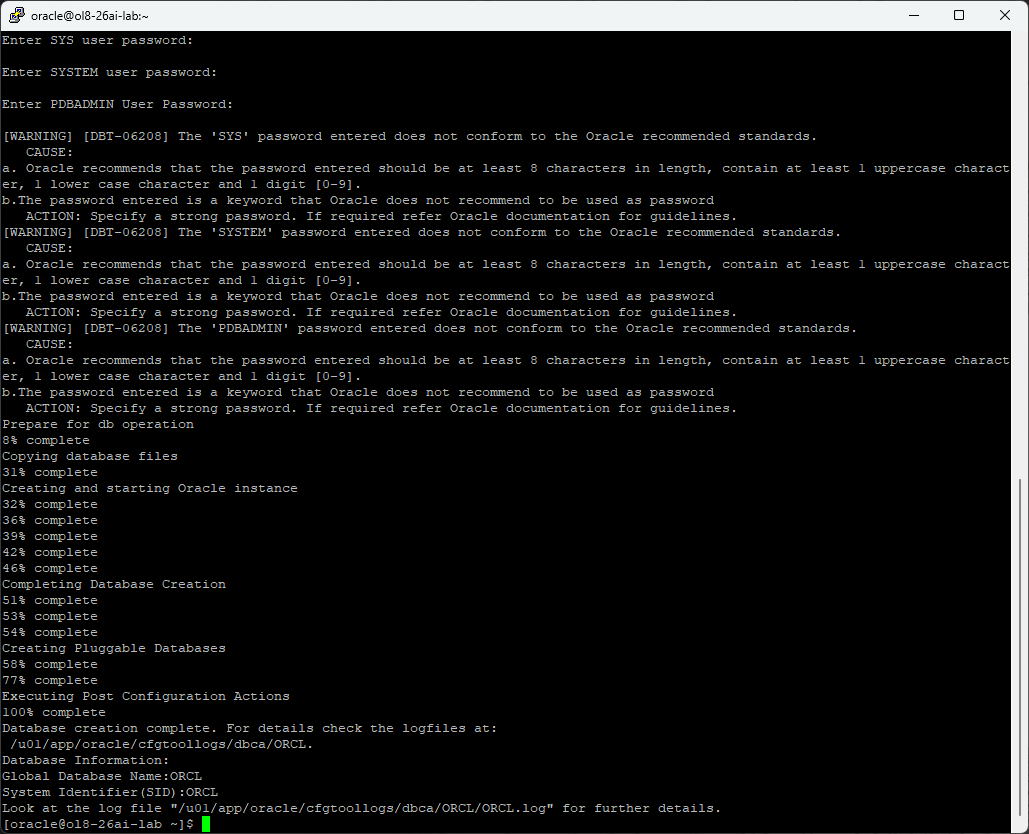
DBCA prompted privately for SYS, SYSTEM, and PDBADMIN passwords. These are database credentials, separate from Linux account passwords. They are intentionally absent from the command, screenshots containing secrets, and this article. My run displayed password recommendation warnings and continued; those warnings were not creation failures.
The copy phase stayed at 8% for a while, then progressed through instance creation, PDB creation, and post-configuration. Do not launch a second DBCA creation job just because a percentage remains unchanged. If necessary, inspect logs from another session while leaving the original process running.
7. Verify the CDB, PDB, and listener
As oracle, connect locally with operating-system authentication:
export ORACLE_SID=ORCL
sqlplus / as sysdba
At the SQL*Plus prompt, run these separately:
SELECT name, cdb, open_mode FROM v$database;
SHOW PDBS
ALTER PLUGGABLE DATABASE ORCLPDB1 SAVE STATE;
The checks returned ORCL / YES / READ WRITE, ORCLPDB1 / READ WRITE / NO for restricted status, and PDB$SEED / READ ONLY. Saving the PDB state makes the PDB reopen when the CDB starts. It does not start Linux or the CDB by itself. SQL statements take a semicolon; enter SQL*Plus commands such as SHOW PDBS on their own line without one.
Exit SQL*Plus and inspect the listener:
exit
lsnrctl status LISTENER
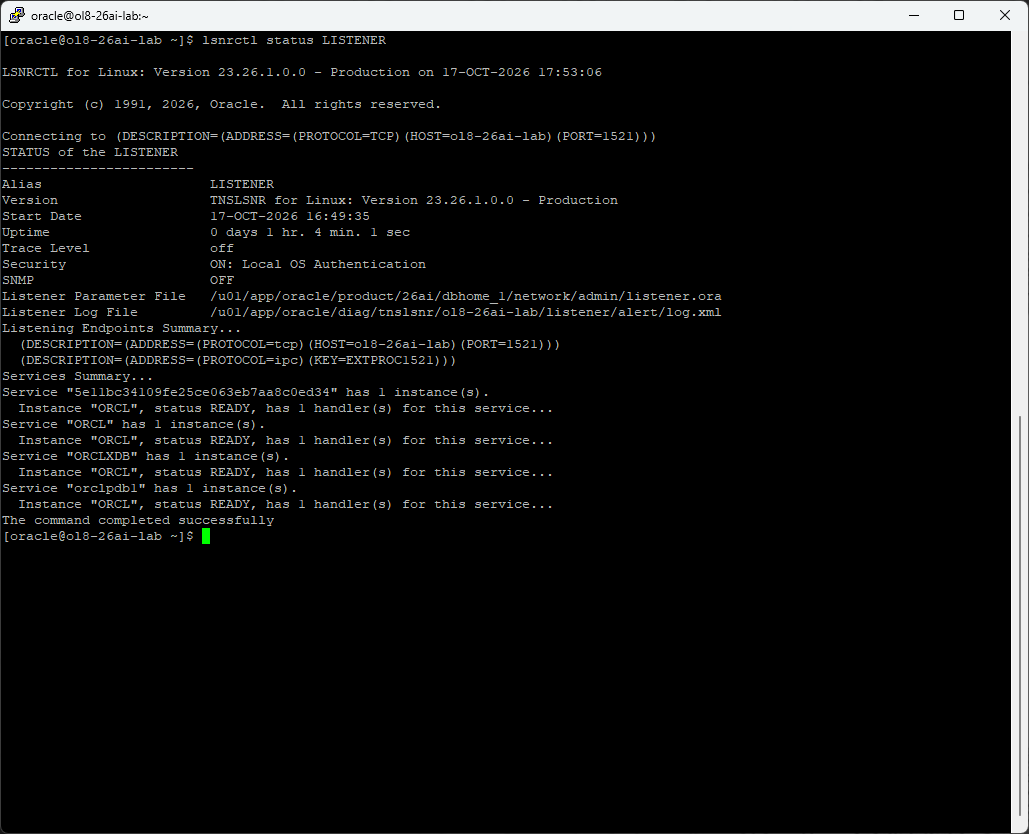
The listener was listening on TCP port 1521, and the ORCL and orclpdb1 services showed READY.
Test the PDB service through TCP from inside the guest:
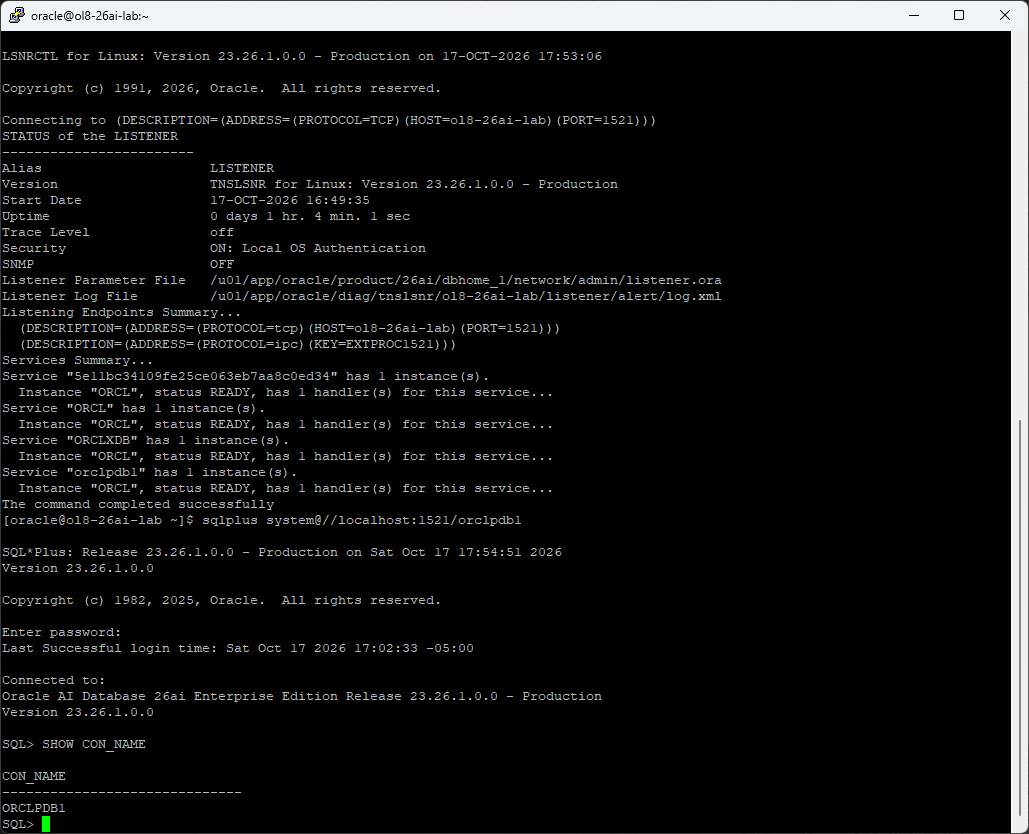
sqlplus system@//localhost:1521/orclpdb1Enter the SYSTEM password at the prompt, then:
SHOW CON_NAMEThe result was ORCLPDB1. This verifies the guest-local TCP path through the listener; it does not claim that a Windows client or a public endpoint can reach port 1521.
Persist the Oracle login environment
After exiting SQL*Plus, I backed up and appended to oracle's existing profile. Apply this block once:
cp -p ~/.bash_profile ~/.bash_profile.before-oracle
cat >> ~/.bash_profile <<'EOF'

# Oracle AI Database 26ai
export ORACLE_BASE=/u01/app/oracle
export ORACLE_HOME=$ORACLE_BASE/product/26ai/dbhome_1
export ORACLE_SID=ORCL
case ":$PATH:" in
  *":$ORACLE_HOME/bin:"*) ;;
  *) export PATH="$ORACLE_HOME/bin:$PATH" ;;
esac
EOF
source ~/.bash_profile
printf 'ORACLE_HOME=%s\nORACLE_SID=%s\n' "$ORACLE_HOME" "$ORACLE_SID"
command -v sqlplus
8. Configure startup when the guest boots
This lab uses a custom systemd oneshot service around Oracle's dbstart and dbshut scripts. It provides boot startup and orderly shutdown. It is not Oracle Restart/Grid Infrastructure, and it does not monitor and restart an individual crashed instance.
As root, check for an existing service first. In this guest, only the disabled preinstallation firstboot service was present:
systemctl list-unit-files --type=service | grep -Ei 'oracle|dbora'
grep '^ORCL:' /etc/oratab
cp -p /etc/oratab /etc/oratab.before-autostart
sed -i '\|^ORCL:|s/:N$/:Y/' /etc/oratab
grep '^ORCL:' /etc/oratab
The final line must read:
ORCL:/u01/app/oracle/product/26ai/dbhome_1:YThe Y flag selects ORCL for the Oracle startup/shutdown scripts. Create this service as root:
cat > /etc/systemd/system/oracle-db.service <<'EOF'
[Unit]
Description=Oracle ORCL database and listener
Wants=network-online.target
After=network-online.target
RequiresMountsFor=/u01/app/oracle

[Service]
Type=oneshot
RemainAfterExit=yes
User=oracle
Group=oinstall
Environment=ORACLE_HOME=/u01/app/oracle/product/26ai/dbhome_1
Environment=ORACLE_BASE=/u01/app/oracle
Environment=ORACLE_SID=ORCL
ExecStart=/u01/app/oracle/product/26ai/dbhome_1/bin/dbstart /u01/app/oracle/product/26ai/dbhome_1
ExecStop=/u01/app/oracle/product/26ai/dbhome_1/bin/dbshut /u01/app/oracle/product/26ai/dbhome_1
TimeoutStartSec=900
TimeoutStopSec=900
LimitNOFILE=65536
LimitNPROC=16384
LimitSTACK=33554432

[Install]
WantedBy=multi-user.target
EOF

systemd-analyze verify /etc/systemd/system/oracle-db.service
systemctl daemon-reload
systemctl enable oracle-db.service
systemctl start oracle-db.service
systemctl status oracle-db.service --no-pager -l
Environment and limits are explicit because a system service does not source oracle's interactive .bash_profile. For a successful oneshot service with RemainAfterExit=yes, active (exited) is expected: the startup script exits while the database background processes continue.
9. Troubleshooting: systemd failed with 203/EXEC
The first service start failed. The database already running was not the cause of this particular error. The journal showed status=203/EXEC, followed by Failed at step EXEC and Permission denied. SELinux explicitly reported that it prevented execution of dbstart.
journalctl -u oracle-db.service -n 60 --no-pager
journalctl -b --no-pager | grep -Ei 'failed at step EXEC|failed to execute|dbstart|avc:.*denied' | tail -n 30
ls -l /u01/app/oracle/product/26ai/dbhome_1/bin/dbstart
head -n 1 /u01/app/oracle/product/26ai/dbhome_1/bin/dbstart
getenforce
ls -lZ /u01/app/oracle/product/26ai/dbhome_1/bin/dbstart
The script existed, had executable permissions, and began with #!/bin/sh. SELinux was Enforcing, and the script's type was default_t. Unix executable permissions alone were therefore not enough for the service to launch it.
For this observed denial, I added a persistent executable file-context rule for the two scripts and applied it:
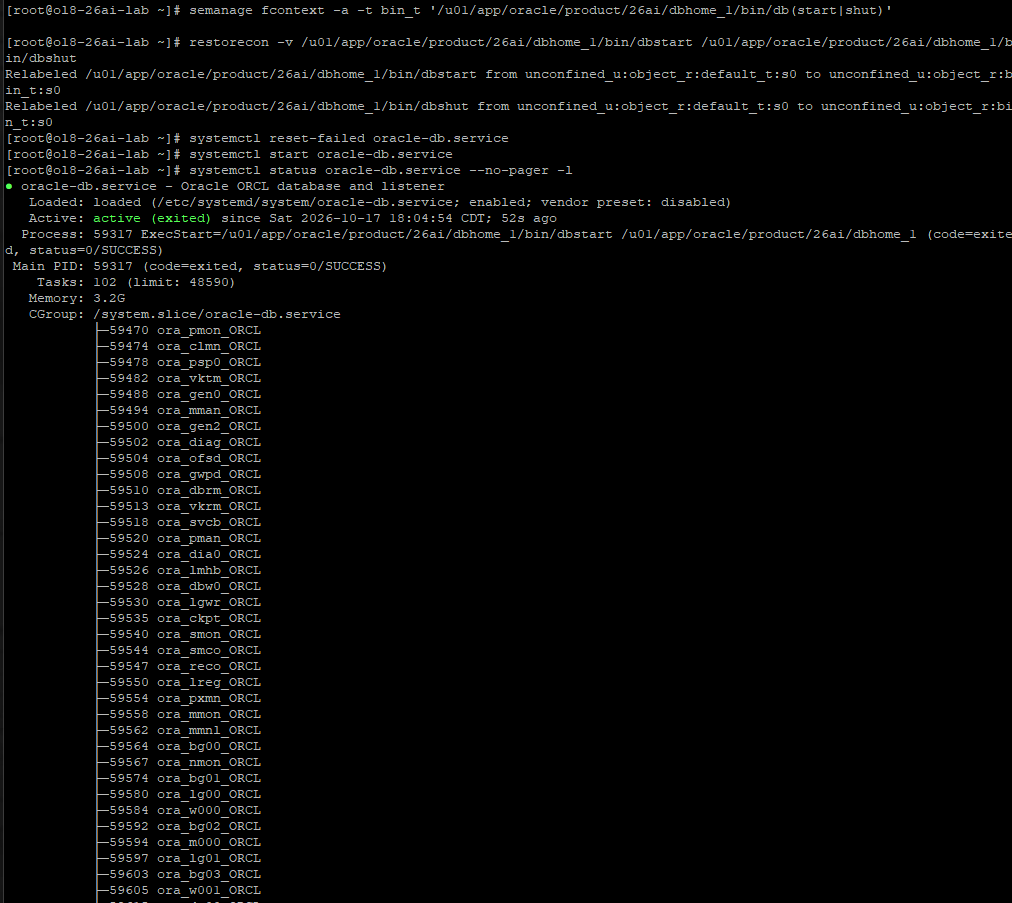
semanage fcontext -a -t bin_t '/u01/app/oracle/product/26ai/dbhome_1/bin/db(start|shut)'
restorecon -v /u01/app/oracle/product/26ai/dbhome_1/bin/dbstart /u01/app/oracle/product/26ai/dbhome_1/bin/dbshut
systemctl reset-failed oracle-db.service
systemctl start oracle-db.service
systemctl status oracle-db.service --no-pager -l
Both scripts were relabeled from default_t to bin_t. The next start returned 0/SUCCESS, with active (exited) and ORCL background processes under the unit. SELinux remained Enforcing. This narrowly scoped label fix addressed our recorded execution denial; it is not a general prescription to relabel an entire Oracle home or disable SELinux. If your logs report a different denial, diagnose that denial instead.
Final checks and the reboot-test boundary
On reconnecting, I verified:
systemctl is-active oracle-db.service
sqlplus / as sysdba
Then, in SQL*Plus:
SELECT name, open_mode FROM v$database;
SHOW PDBS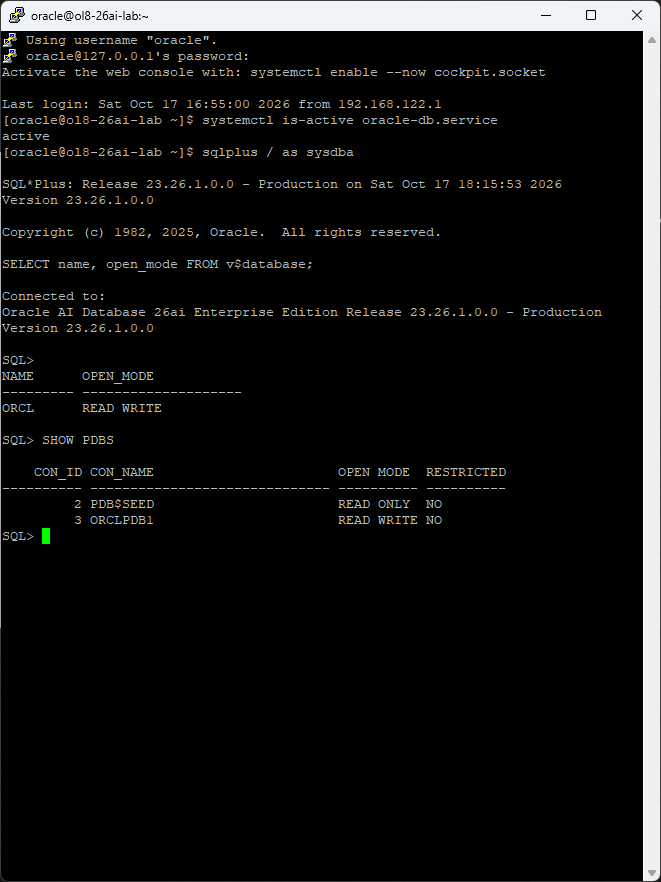
The screenshots establish the enabled service, successful startup, and open database state. They do not independently establish that a VM reboot occurred between those checks. To finish a documented boot test, reboot only this guest during a suitable lab window, reconnect, and repeat the checks plus lsnrctl status LISTENER. Do not reboot the virtualization host. The guest's own autostart setting on its virtualization host is a separate setting.
At the end of this session, the software was installed, ORCL and ORCLPDB1 were open, the listener accepted a local PDB connection, and the boot service was enabled and started successfully. The response-file copy, rather than a hand-invented template, kept the installation aligned with the media we actually tested.
Share on LinkedIn ↗References and further reading
- Oracle AI Database 26ai Linux downloads and checksums
- Oracle 26ai: response files
- Oracle 26ai: runInstaller command
- Oracle 26ai: DBCA silent-mode commands
- Oracle 26ai: server hardware checklist
- Oracle administrator reference: dbstart, dbshut, and oratab (18c reference)
- Oracle Linux: administering SELinux
All screenshots in this walkthrough come from my lab session. An initial reading reference was Teatmisy Eysan's RAC installation article; this guide records a separate single-instance installation, not a RAC deployment.
Comments
Have a question or something to add? Share it below.
Leave a comment
Your name and comment will be public. Automated spam checks run before posting. Please keep comments relevant and leave out passwords or private details.